

OneTrust Cookie Consent Tag Manager: 6 Checks Before You Push Live in 2026
If you are searching for onetrust cookie consent tag manager, you probably are not looking for another abstract summary of consent mode. You are trying to make sure a real tag manager setup waits when it should wait, updates when a visitor changes a choice, and does not quietly drift after somebody republishes a container.
That is the right question in July 2026. The European Commission still says valid consent must be freely given, informed, specific, expressed through a positive act, and easy to withdraw. The UK ICO’s final storage-and-access technologies guidance, finalized on April 29, 2026, also makes clear that the compliance review is broader than classic browser cookies alone. It reaches storage and access technologies more generally, and the ICO says non-exempt technologies need prior consent and granular, technically effective controls.
If you want the wider setup context first, start with our guides to OneTrust cookie consent Google Tag Manager, OneTrust Google Consent Mode, and cookie consent tag manager. This article is narrower. It is the short review I would run before trusting a live onetrust cookie consent tag manager deployment.
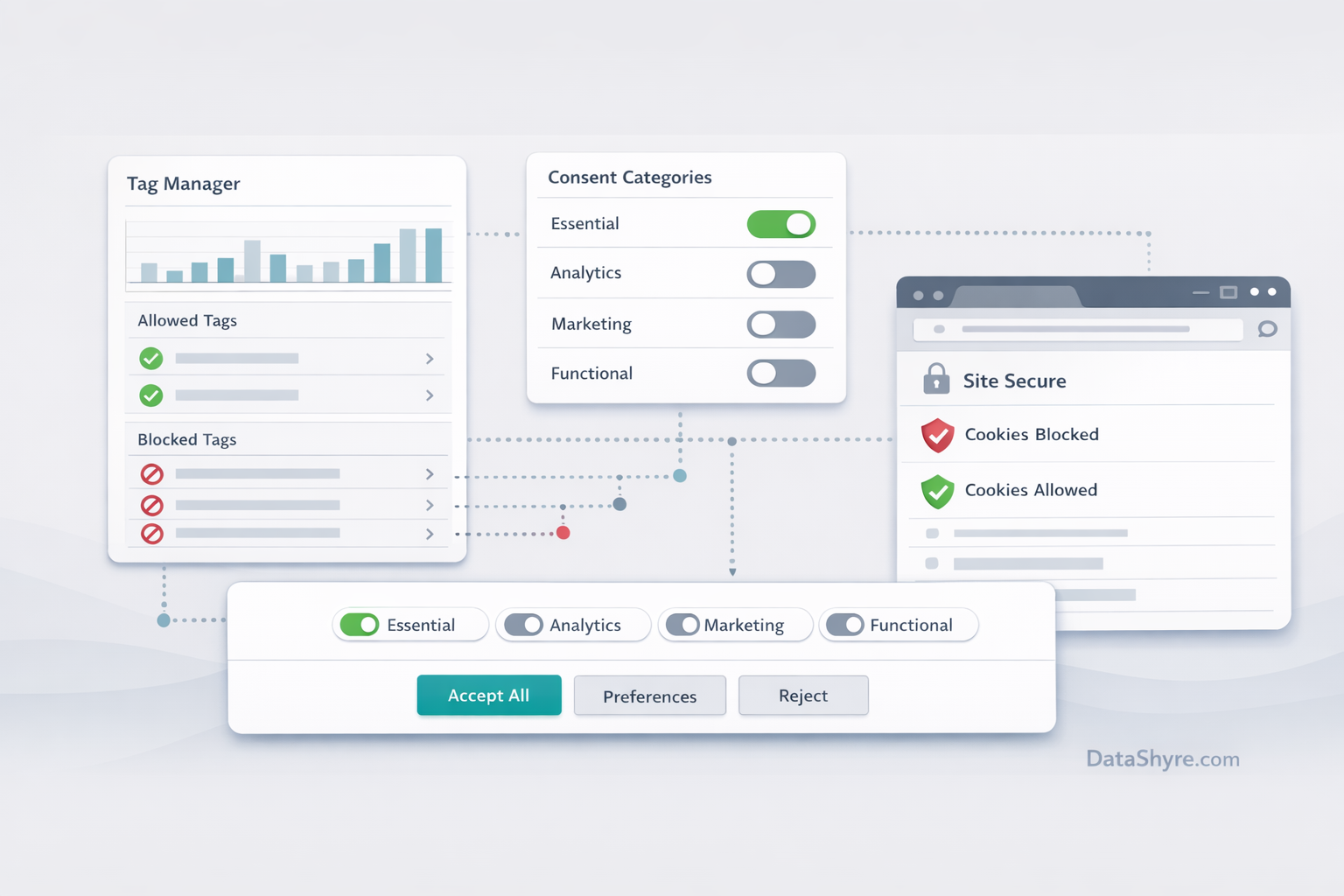
What the job actually is
In practice, most teams using this keyword mean OneTrust with Google Tag Manager, not a generic tag manager pattern.
Google’s current Tag Manager help still points teams to the OneTrust CMP template in the Community Template Gallery and tells them to copy the OneTrust script ID from the OtAutoBlock.js production script into the template. OneTrust’s own developer materials also still describe the core signal path the same way: consent categories populate OnetrustActiveGroups, and consent changes can be handled through OneTrustGroupsUpdated, OnConsentChanged, or Google-consent-specific update callbacks.
That means the useful review is not “did the banner appear?” It is “did the tag layer get the right state early enough, and did the rest of the stack respect it?”
6 checks before you trust a OneTrust cookie consent tag manager setup
1. Make sure the OneTrust tag is loaded the way Google expects
Google’s Tag Manager help is very concrete here. It tells teams to install the OneTrust CMP template from the Community Template Gallery, select the website inside OneTrust, and paste the production script ID from the OtAutoBlock.js URL into the template.
That matters because a lot of messy implementations start with an improvised loading path. If somebody cannot explain which OneTrust script is in production, where the ID came from, and which container version published it, you are already in cleanup territory.
Before you look at banner design, confirm:
- the GTM workspace is using the OneTrust CMP template or another deliberate consent template path;
- the correct production script ID is configured;
- the current container version matches the OneTrust publish you think is live.
2. Set denied defaults on Consent Initialization, not later
Google’s developer guidance still says the sequence is simple: set the default consent state before the user acts, then update the state after the user acts. Its troubleshooting guidance is even more useful because it says the consent-writing tag should fire on Consent Initialization – All Pages, that defaults should not be set asynchronously, and that teams should account for at least four parameters:
ad_storagead_user_dataad_personalizationanalytics_storage
This is one of the fastest ways to find a weak onetrust cookie consent tag manager setup. If defaults are late, another tag may already have read or written data before the consent state exists.
3. Drive updates from OneTrust’s actual consent signals
OneTrust’s GTM and events documentation is still helpful because it names the mechanics plainly. OnetrustActiveGroups is the data-layer value that holds the active category IDs, and OneTrustGroupsUpdated fires each time the script loads and whenever the user updates consent preferences. OneTrust also exposes OneTrust.UpdateGCM(callback) and OneTrust.OnConsentChanged(callback) for setups that need tighter control over Google consent updates.
The practical point is simple: build around OneTrust’s real consent signals, not around a fragile guess.
If I were reviewing the container, I would ask:
- Which OneTrust categories control analytics?
- Which categories control ad-related consent?
- What exact event updates the tags after acceptance or rejection?
- Where is that logic documented?
If nobody can answer those without opening three browser tabs and reconstructing it from memory, the setup is too brittle.
4. Test reject and update behavior on the same page
Google’s consent-mode guide says consent updates need to be tracked on the page where they occur, before any page transition. Its Tag Assistant troubleshooting flow says to inspect the earliest Consent event for the on-page default, then inspect the most recent Consent event for the update.
The ICO’s current guidance points in the same direction from the legal side. It says consent mechanisms must function as intended, provide granular options by purpose, and allow withdrawal with the same ease as giving consent.
So the minimum live review is not just Accept all. It is:
- open the page in a clean browser session;
- inspect the earliest Consent event and confirm denied defaults;
- reject optional categories and confirm the update stays denied;
- accept only the categories you actually need and confirm the state changes cleanly;
- reopen preferences and confirm later withdrawal still works.
That one sequence will usually reveal whether the banner is connected to reality or just to nicer copy.
5. Treat SPAs and late-loading embeds as their own problem
Single-page applications are where a lot of calm-looking implementations break.
OneTrust’s SPA documentation says OneTrustGroupsUpdated fires when the script loads and when consent changes, and it also documents helper methods such as OneTrust.LoadBanner() and OneTrust.Init() for setups where the page does not fully reload. The same docs warn that dynamic sites may need extra handling so consent status is re-read after route changes or UI updates.
That matters if your site uses React, Next.js, Angular, embedded video, live chat, or any other feature that arrives after first paint. A working first page does not prove a working route change.
6. Keep blocking claims and tag governance aligned
OneTrust’s current materials still describe Auto-Blocking as a way to automate how cookies, scripts, and tags respond to visitor choices. That can reduce manual work, but it is not a reason to stop testing. The ICO’s guidance is blunt that the mechanism has to function as intended and that non-exempt technologies should only be set when valid consent exists or an exception applies.
So if your team says “OneTrust handles the blocking,” the next question should be “show me on the live page.”
I would especially re-test after:
- a new marketing pixel is added;
- GTM trigger logic changes;
- SPA routing changes;
- a third-party embed is added;
- OneTrust categories are edited or republished.
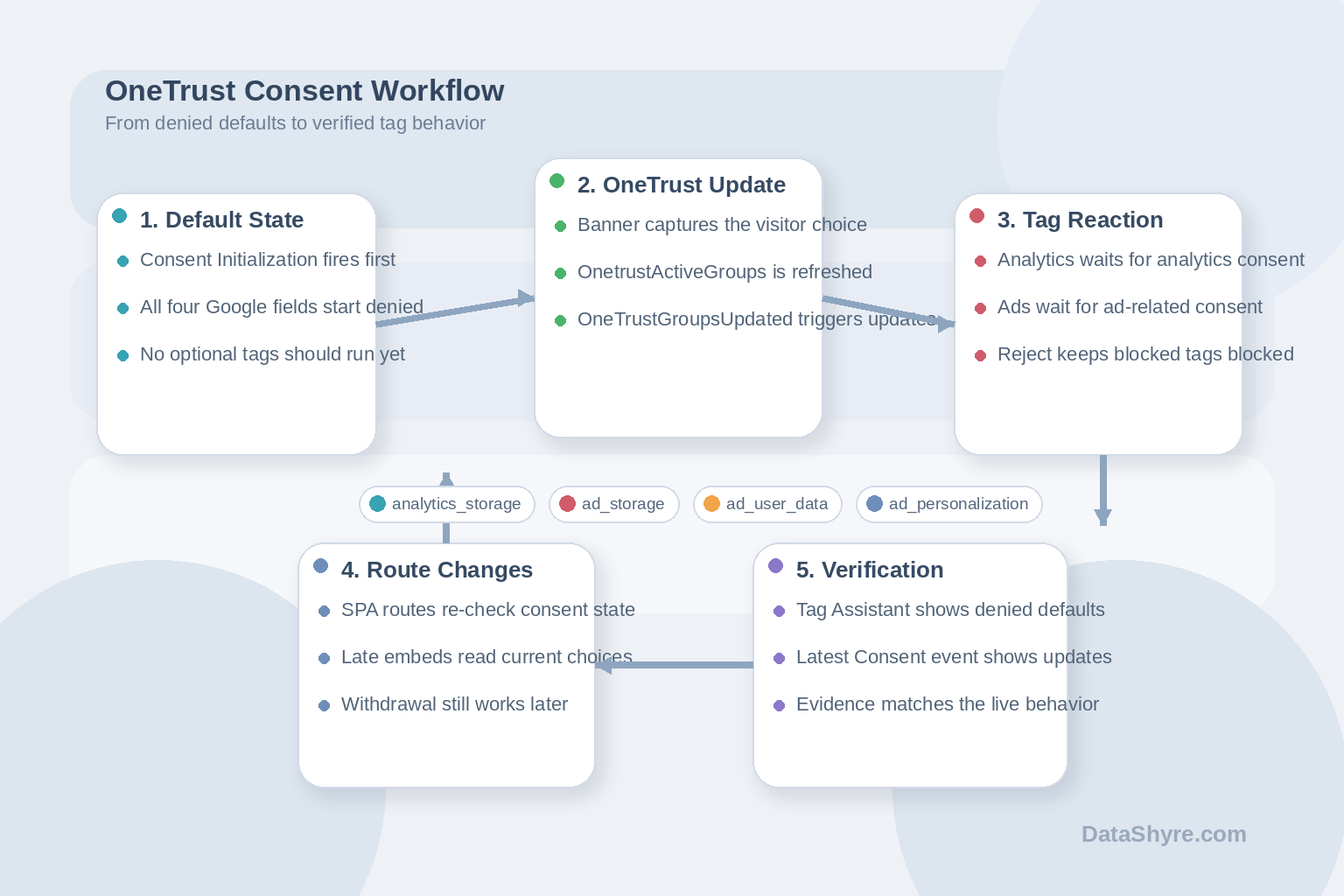
A short go-live sequence
If I had ten minutes before publish, I would do this in order:
- Confirm the OneTrust template and production script ID in GTM.
- Verify the consent-writing tag fires on Consent Initialization.
- Check denied defaults for all four Google consent parameters.
- Reject optional categories and verify the update stays denied.
- Accept only the intended categories and verify the right tags react.
- Reopen preferences and test withdrawal.
- Repeat the test on any SPA route or late-loading template that matters.
That is not glamorous work. It is the work that keeps a consent deployment from turning into an incident review.
Bottom line
The best onetrust cookie consent tag manager setup in 2026 is the one that behaves predictably under inspection. It loads the right template, sets defaults early, updates on the same page, uses OneTrust’s real consent signals, survives SPA behavior, and can still prove what happened later.
If the container cannot do those things, a polished banner will not change much.
Sources
- European Commission: When is consent valid?
- UK ICO: Guidance on the use of storage and access technologies
- UK ICO: How do we manage consent in practice?
- Google Tag Manager Help: Set up OneTrust to obtain user consent
- Google for Developers: Set up consent mode on websites
- Google for Developers: Troubleshoot consent mode with Tag Assistant
- OneTrust Developer Documentation: Google Tag Manager
- OneTrust Developer Documentation: Using Google Consent Mode to Adjust Tag Behavior Based on Consent
- OneTrust Developer Documentation: Web CMP Events Guide
- OneTrust Developer Documentation: Web CMP JavaScript Methods
- OneTrust Developer Documentation: Single Page Applications