

OneTrust Cookie Consent Google Tag Manager: 7 Live Checks Before You Publish in 2026
If you are reviewing onetrust cookie consent google tag manager on September 25, 2026, the useful question is not whether the banner appears.
It is whether OneTrust, Google consent mode, Google Tag Manager, and the tags underneath them still agree at runtime before consent, after acceptance, after refusal, and after a later settings change.
That framing still matches the live official pattern. On April 29, 2026, the ICO published final storage-and-access-technologies guidance covering cookies, tracking pixels, device fingerprinting, and similar technologies. Google still says consent mode does not provide the banner itself; it relies on your consent tool to collect the choice and communicate it correctly. OneTrust’s current GTM guidance still depends on the OnetrustActiveGroups data layer variable and the OneTrustGroupsUpdated event for trigger logic. And if you serve personalized ads in the EEA, UK, or Switzerland, Google still requires a certified CMP integrated with the TCF for that traffic.
If you want adjacent context first, start with our guides to Google Consent Mode V2, Google Tag Manager cookie consent, and consent management platform best practices. This article is narrower. It is the live review I would run before publishing or re-publishing a OneTrust plus GTM setup this week.
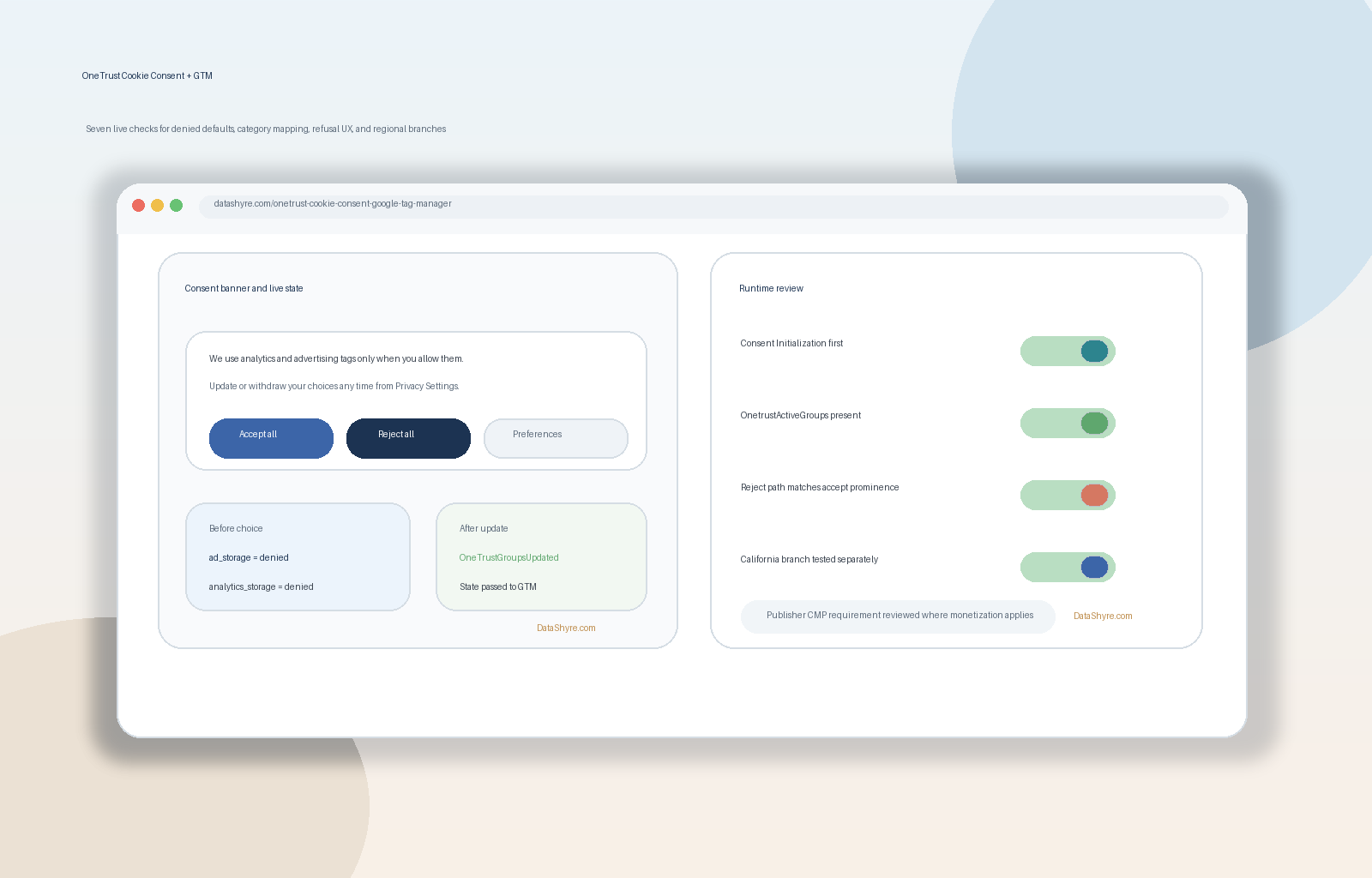
1. Put consent state in place before the rest of GTM matters
The first failure is usually load order.
Google Tag Manager includes Consent Initialization - All Pages specifically so consent settings can be honored before other triggers fire. If you inject OneTrust through GTM, this is where the CMP tag belongs. If you deploy OneTrust directly on the site instead, your defaults and CMP script still need to land at the very top of the page flow so they exist before measurement or ad logic starts reading state.
For practical review, I would ask:
- does the OneTrust or consent-default logic run before analytics and ads tags;
- does a clean first page view begin in the expected denied state where required;
- does any non-essential script beat consent to the page.
If the answer to the third question is yes, the rest of the setup is cosmetic.
2. Decide whether you are running basic or advanced consent mode on purpose
Google still distinguishes between basic and advanced consent mode.
In basic consent mode, Google tags do not load until a person interacts with the banner. In advanced consent mode, Google tags load with consent defaults and adjust behavior based on the current state. That is not a minor implementation detail. It changes what requests appear before choice, how modeling works, and what your team should expect in Tag Assistant.
For a OneTrust plus GTM setup, the important thing is not picking the fashionable option. It is making the actual runtime behavior match the option you believe you implemented.
That means verifying:
- your defaults are explicit, not inherited accidentally;
- your region logic is intentional;
- your testing team knows whether blocked tags or denied-state pings are expected before consent.
Too many teams think they are testing a banner when they are really testing an undocumented consent-mode strategy.
3. Map OneTrust categories to Google consent types and handle non-Google tags separately
This is the control point most likely to drift.
OneTrust’s GTM documentation still uses the OnetrustActiveGroups data layer variable and the OneTrustGroupsUpdated event to drive trigger logic. Its Google consent mode guidance still centers on sending default and update states and mapping OneTrust categories to Google consent types. In parallel, Google says several Google products already have built-in consent checks, including Google tag, Google Analytics, Google Ads, Floodlight, and Conversion Linker.
That combination leads to a simple review rule:
- make the OneTrust category mapping explicit;
- verify Google tags are reading the intended consent types;
- separately verify non-Google tags, because they often still need custom trigger logic.
In most implementations, I would expect analytics-style categories to drive analytics_storage, and advertising-style categories to govern ad_storage plus the newer advertising-related consent signals. If those mappings are vague inside the tenant, GTM usually reflects that vagueness faithfully.
4. Treat refusal UX as a configuration issue, not just a design issue
A OneTrust and GTM deployment can be technically elegant and still fail the first-layer choice test.
The CNIL still says “rejecting cookies should be just as easy as accepting them.” The ICO’s 2026 guidance makes the same operational point by showing equal first-layer choices and stressing that the mechanism must function as intended. In other words, a banner that makes refusal harder is not fixed just because the GTM wiring behind it is sophisticated.
For this keyword, I would test the refusal path the same way I test the category mapping:
- compare
Accept AllandReject Allon desktop; - compare them again on mobile;
- count clicks to refusal versus acceptance;
- confirm refusal leaves the runtime in the expected state.
If refusal is buried, visually downgraded, or easier to miss on one viewport, the problem is not only legal. It also corrupts your measurement of what users actually chose.
5. Separate European prior-consent logic from California opt-out logic
OneTrust makes it easy to talk about “global” privacy controls. Real deployments are messier.
For UK and EU-style consent flows, the live focus is prior consent, clear categories, equal refusal, and reliable withdrawal. For California, the branch often centers on opt-out rights, sale or sharing controls, and browser signals such as Global Privacy Control. California’s Department of Justice still describes GPC as a “stop selling or sharing my data switch.” And in the CPPA’s March 5, 2026 Ford matter, enforcement leadership put the design principle plainly: “Opting out is supposed to be easy.”
That means your OneTrust plus GTM review should check whether:
- geolocation and regional rules are actually separated;
- California users can exercise the relevant opt-out path without avoidable friction;
- GPC handling lines up with the downstream ad and tag behavior you intend;
- EU or UK prior-consent expectations are not being diluted by a US-wide default.
This is also where ad-monetized publishers need extra discipline. Google’s current publisher guidance says partners using AdSense, Ad Manager, or AdMob must use a Google-certified CMP integrated with the IAB Transparency and Consent Framework when serving personalized ads in the EEA and UK as of January 16, 2024, and in Switzerland as of July 31, 2024.
6. Test runtime behavior, not screenshots
The safest OneTrust plus GTM review still happens in tools, not slides.
My minimum runtime test this week would be:
- open a clean browser session;
- load the page without interacting;
- inspect network requests and cookies;
- open GTM Preview or Tag Assistant;
- accept one category and confirm the right state changes;
- reject all and confirm the relevant tags stay off or move to the expected denied behavior;
- reopen settings later and withdraw a previously granted category.
Look specifically for these signals:
- whether the consent state exists before downstream tags evaluate;
- whether
OneTrustGroupsUpdatedfires when expected; - whether
OnetrustActiveGroupscontains the categories you think it does; - whether non-Google tags remain gated correctly;
- whether a later withdrawal changes behavior, not just the banner text.
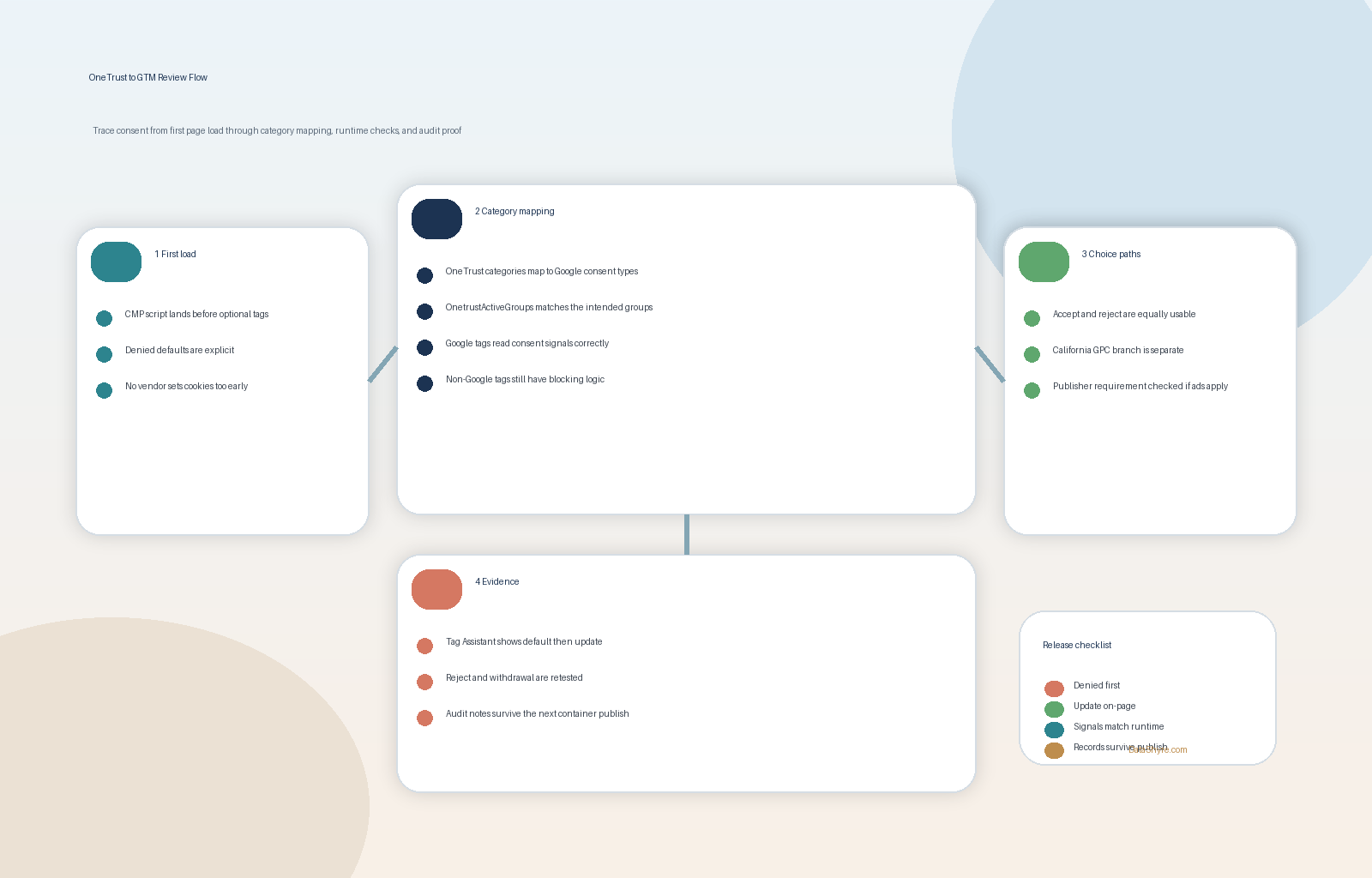
7. Keep proof that survives the next container publish
OneTrust plus GTM failures often appear after an ordinary change: a new container version, a new marketing pixel, a new embed, or a new regional rule.
So the final check is evidence.
I would want to keep:
- the banner version and first-layer copy that was live;
- the category-to-consent-type mapping in force on that date;
- test evidence for pre-consent, accept, reject, and later withdrawal states;
- notes on regional logic, including California handling where relevant;
- confirmation that any ad-serving requirement tied to traffic region was reviewed.
If you cannot reconstruct what the user saw, what OneTrust stored, what GTM received, and what tags did with it, the implementation is harder to defend and harder to debug.
Bottom line
The strongest onetrust cookie consent google tag manager setup in 2026 is not the one with the nicest banner or the longest template gallery checklist.
It is the one that establishes consent state early, maps categories clearly, makes refusal genuinely easy, separates regional logic on purpose, and still behaves correctly when you test it live.
If your team can pass those seven checks today, you are in a much better place than a site that only proves the banner rendered.
Sources
- Google Tag Manager Help: About consent mode
- Google Tag Manager Help: Page view triggers
- Google AdSense Help: Google consent management requirements for serving ads in the EEA, the UK, and Switzerland (for publishers)
- OneTrust Developer Docs: Google Tag Manager
- OneTrust Developer Docs: Using Google Consent Mode
- OneTrust Developer Docs: Cookie Consent Integration with Google Tag Gateway for Advertisers
- ICO: Final storage and access technologies guidance published
- ICO: How do we manage consent in practice?
- CNIL: Dark Patterns in Cookie Banners: CNIL issues formal notice to website publishers
- California Department of Justice: Global Privacy Control (GPC)
- California Privacy Protection Agency: Ford to Change Practices, Pay Fine for Adding Unnecessary Friction to Opt-Out Process
—
Published: September 25, 2026. Updated using current official regulator, government, platform, and vendor materials available at publication time.