

Google Tag Manager Cookie Consent: 2026 Compliance Guide
Executive Summary
Google Tag Manager (GTM) is one of the most widely deployed tag management systems on the web, but it doesn’t manage cookie consent on its own. In 2026, configuring Google Tag Manager cookie consent correctly is mandatory for any site serving users in the EEA, the UK, or regulated U.S. states. This guide walks through the practical steps, the regulatory triggers, and the Consent Mode v2 signals you need to wire up — without breaking your analytics or ad campaigns.
Why Google Tag Manager Needs a Consent Layer
GTM itself does not drop cookies. The Google documentation is clear on this — Tag Manager is a JavaScript container that loads other tags. The cookies come from the tags it deploys: Google Analytics 4, Google Ads, Floodlight, Meta Pixel, LinkedIn Insight, and any custom HTML tag that calls a tracking endpoint.
This distinction matters because the GDPR and the ePrivacy Directive do not require consent for GTM itself, but they do require prior, explicit consent for any non-essential tag that reads or writes identifiers, sets cookies, or sends personal data to a third party. A misconfigured GTM container that fires a Marketing tag before the user opts in is the most common cookie-consent violation our team audits.
Three regulatory drivers make this urgent in 2026:
- Google Consent Mode v2 has been required since March 2024 for advertisers using Google Ads or GA4 to measure EEA and UK traffic, and on June 15, 2026 Google narrowed Google Signals’ role, making Consent Mode the sole control surface for advertising data collected by Google Ads from Google Analytics.
- EDPB guidance continues to treat pre-checked boxes and “implied consent” as invalid.
- U.S. state laws (CCPA/CPRA, Colorado, Connecticut, Virginia, Texas) require opt-out mechanisms for the sale or sharing of personal information.
If your GTM container is firing tags before consent, you face both regulatory exposure and data-quality problems — you cannot model conversions or build audiences from data you were never allowed to collect.
What Google Tag Manager Handles (and What It Doesn’t)
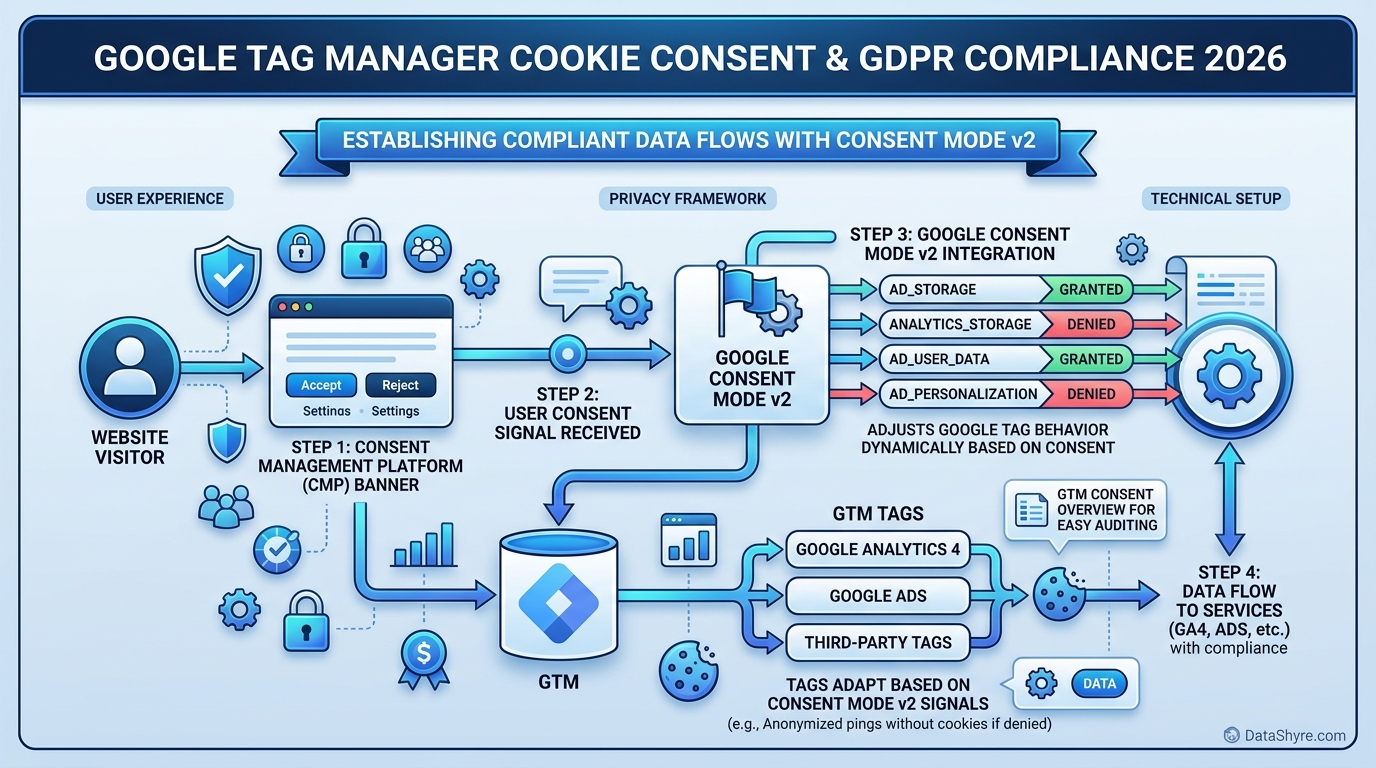
GTM provides a Consent Settings panel and a built-in consent state data layer, but the actual user-facing banner must come from a Consent Management Platform (CMP). The CMP and GTM work together in this pattern:
- The CMP renders the cookie banner and captures the user’s choices.
- The CMP writes the consent state to the GTM data layer using the keys
ad_storage,analytics_storage,ad_user_data, andad_personalization. - GTM reads those keys via the built-in consent mechanics and either allows or blocks each tag based on its consent settings.
- Non-Google tags (Meta, LinkedIn, TikTok) need their own consent checks, since Consent Mode v2 only governs Google tags.
If you try to implement consent inside GTM using only a custom HTML tag and a callback function, you will leak cookieless pings and lose Google’s conversion modeling. A certified CMP is non-negotiable for production sites in 2026.
Google Consent Mode v2: The Four Required Signals
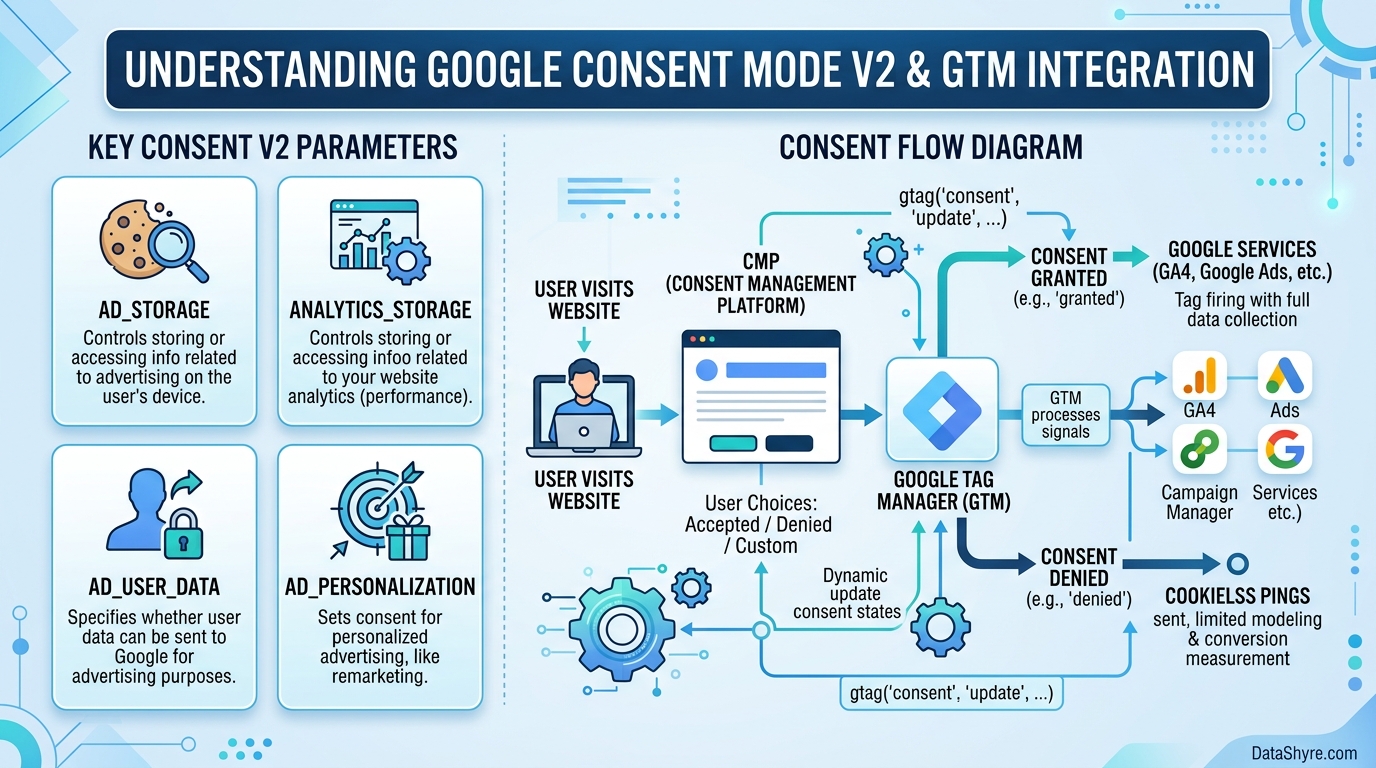
Consent Mode v2 introduced two new parameters on top of the original two. All four are now required for a complete implementation:
| Parameter | Purpose | Default (EEA/UK) | |———–|———|——————| | ad_storage | Consent for advertising cookies (Google Ads) | Denied | | analytics_storage | Consent for analytics cookies (GA4) | Denied | | ad_user_data | Consent to send user data to Google for advertising | Denied | | ad_personalization | Consent for personalized ads and remarketing | Denied |
These defaults must be set before any other tag fires. The standard implementation pattern is a single tag — usually a CMP template or a custom HTML tag with the gtag('consent', 'default', ...) call — triggered on Consent Initialization. This ensures the defaults land in the data layer prior to the pageview or any measurement tag.
Step-by-Step: Setting Up Cookie Consent in GTM
1. Choose a Google-Certified CMP
A Google-certified CMP is one that has been validated to send the correct Consent Mode v2 signals. Examples include Cookiebot, OneTrust, Usercentrics, Osano, and TrustArc. If you serve ads in the EEA and rely on conversion modeling, certification is effectively required — uncertified CMPs send signals Google cannot use for modeling, and your campaign optimization will degrade.
When evaluating CMPs, confirm:
- They support a GTM template or a custom template you can import from the Community Template Gallery.
- They support the four v2 parameters.
- They expose a “denied” default for EEA/UK and a region-aware default for other jurisdictions.
- They can block scripts before consent (server-side or via a tag manager), not just suppress the UI.
2. Install the CMP Template in GTM
From your GTM container, open Templates → Search Gallery and import your CMP’s template. This is a community template contributed by the CMP vendor and reviewed by Google. It exposes a tag type and triggers you can use without writing JavaScript.
If your CMP does not provide a template, you can implement the same behavior with a Custom HTML tag that calls gtag('consent', 'update', {...}) on the consent event. Both paths are valid; the template is just faster to deploy and easier to audit.
3. Configure Default Consent States
Create a tag — either the CMP’s “Set Default Consent” tag or a Custom HTML tag — that runs on the Consent Initialization trigger. The default state for EEA, UK, and Switzerland should be:
“ ad_storage: denied analytics_storage: denied ad_user_data: denied ad_personalization: denied “
For other regions, you may set defaults that match local law. For U.S. state privacy regimes (CCPA/CPRA), the default is typically “granted” with a clear opt-out mechanism in the banner. Consult your legal team before choosing this default; a “denied” default is safer for jurisdictions you have not specifically mapped.
4. Wire Up the Consent Update Trigger
After the user interacts with the banner, your CMP will push an update to the data layer. The CMP template handles this automatically; if you are using a custom implementation, your CMP must call:
“ gtag('consent', 'update', { ad_storage: 'granted', analytics_storage: 'granted', ad_user_data: 'granted', ad_personalization: 'granted' }); “
Only the parameters the user actually accepted should be set to “granted.” A user who accepts only “Essential” should see analytics_storage remain “denied.”
5. Configure Tag-Level Consent Settings
Open each Google tag in your container (GA4 Configuration, Google Ads Conversion, Google Ads Remarketing) and review the Consent Settings section. GA4 requires analytics_storage; Google Ads requires ad_storage and ad_user_data; remarketing requires ad_personalization. Tags that require a consent parameter the user has not granted will be blocked automatically — no additional trigger logic required.
For non-Google tags (Meta Pixel, LinkedIn Insight, TikTok Pixel), you will need to add a blocking trigger that checks the relevant data layer variable, or rely on your CMP’s built-in script-blocking. Consent Mode v2 does not govern these vendors.
6. Test with Preview Mode and Tag Assistant
GTM’s Preview mode is your primary validation tool. Walk through these checks:
- Open Consent in the GTM debug panel. The default state for EEA traffic should show all four parameters as “denied” before the banner interaction.
- Confirm that Google Ads and GA4 tags do not fire before consent is granted.
- Accept only the Analytics category. Reload the page and confirm
analytics_storageis “granted” whilead_storageremains “denied.” - Use Google Tag Assistant in a separate tab to confirm the
gcs(Google Consent State) parameter is being sent with each hit.
Tag Assistant will surface a “consent not configured” warning if your defaults are missing or your tag-level settings are inconsistent. Treat these as build failures, not warnings.
Basic vs. Advanced Consent Mode
Google offers two implementation levels for Consent Mode v2:
- Basic Consent Mode blocks Google tags entirely until consent is granted. You collect zero data — not even cookieless pings — from users who decline. This is the most conservative and the easiest to defend legally, but it leaves you without the data you need for conversion modeling or audience building in declined cohorts.
- Advanced Consent Mode allows tags to load before consent in a cookieless, restricted mode. The tags send anonymous, aggregated signals (sometimes called “cookieless pings”) to Google even when consent is denied, which Google uses for conversion modeling. Google has publicly stated this approach can recover over 70% of ad-click-to-conversion journeys that would otherwise be lost to consent declines.
The EDPB has not formally blessed Advanced Consent Mode. Some data-protection authorities (notably the French CNIL and the Dutch AP) have published guidance that is broadly compatible with the cookieless-ping model, but the legal picture is not uniform. Before choosing Advanced Consent Mode, document the legal basis for sending anonymous pings to Google without prior consent, and confirm the approach with your DPO or outside counsel.
Common Implementation Mistakes
After auditing dozens of GTM containers, the same issues appear repeatedly:
- Defaults are set in the wrong trigger. If your “Set Default Consent” tag fires on All Pages instead of Consent Initialization, the defaults can race with measurement tags and a few hits may leak before the defaults land.
- No “denied” default for EEA. If your defaults are empty, GTM treats every consent parameter as “not set” and tags can fire. Always populate all four parameters, even if the value is “denied.”
- The CMP loads after GTM. Your CMP template should be one of the first tags to fire. If the CMP loads from a delayed script or a deferred tag, the page will render before the banner appears and you may have already fired Google tags.
- Old consent parameters. If you are still passing only
ad_storageandanalytics_storagewithoutad_user_dataandad_personalization, you are running Consent Mode v1. Google will not use your data for modeling and your ad campaigns will underperform in the EEA. - No withdrawal path. A user must be able to revoke consent as easily as they granted it. Most CMPs provide a persistent “Privacy Settings” link in the footer; make sure yours is visible and functional.
2026 Updates Worth Tracking
Three Consent Mode changes landed or are landing in 2026 that affect your GTM setup:
- June 15, 2026: Google narrowed Google Signals’ role. Consent Mode v2 is now the sole control for advertising data collected by Google Ads from Google Analytics. If you were relying on Google Signals for behavioral reporting on EEA users, that data path is closed unless Consent Mode signals are correctly set.
- Throughout 2026: Google has signaled further changes to how ads personalization and IP address handling are managed within Google Ads. Subscribe to the Google Ads product announcements and re-audit your GTM container at least quarterly.
- DMA enforcement: The European Commission’s Digital Markets Act continues to bite on designated gatekeepers. If you are a gatekeeper or a large platform processing EEA data, additional consent disclosures may apply on top of the GDPR baseline.
Internal Resources
For related reading on our site:
- GDPR Cookie Consent Examples — Practical patterns and banner copy
- CCPA Cookie Consent Requirements — U.S. state-by-state requirements
- Cookie Consent Manager: 2026 Compliance Guide — How to evaluate and deploy a CMP
- Cookie Consent Message: 2026 Compliance Guide — What your banner must say
Conclusion
A correct Google Tag Manager cookie consent setup in 2026 comes down to three things: a Google-certified CMP, default-deny Consent Mode v2 signals on the Consent Initialization trigger, and tag-level consent settings on every Google tag in the container. Get those three right and you will satisfy both the GDPR and Google’s own measurement requirements; miss any of them and you will leak data and degrade your ad performance at the same time.
If you are starting from scratch, deploy the CMP first, then wire up Consent Mode v2 with denied defaults, then audit each existing tag one by one. If you already have a container in production, the fastest path to compliance is to import the CMP’s GTM template, set denied defaults on Consent Initialization, and run Tag Assistant on a representative page to confirm no Google tag fires before consent.
Published: September 7, 2026