

WordPress Accessibility Plugin in 2026: 7 Checks Before You Install One
If you are searching for a WordPress accessibility plugin on November 5, 2026, the easiest mistake is treating the plugin like the whole accessibility program.
It is not.
A good WordPress accessibility plugin can help expose missing landmarks, improve navigation patterns, catch contrast and labeling issues, or make recurring checks easier. But it cannot magically turn a broken theme, inaccessible form, or confusing privacy flow into a compliant user experience by itself.
That is still the right frame this year. ADA.gov says businesses and state and local governments still have to make sure the goods, services, and programs they provide online are accessible to people with disabilities, while also noting that existing technical standards such as WCAG and Section 508 provide helpful guidance. For state and local governments, the Department of Justice’s April 20, 2026 interim final rule extended the Title II web and mobile accessibility dates to April 26, 2027 for public entities with populations of 50,000 or more and April 26, 2028 for smaller public entities and special district governments. W3C’s publication history shows WCAG 2.2 was updated as a Recommendation on December 12, 2024, and WordPress’s own accessibility coding standards say code integrated into the WordPress ecosystem is expected to conform to WCAG 2.2 at Level AA.
If you want the adjacent context first, start with our guides to web accessibility, website privacy checker, and cookie consent banner. This page stays narrower. It is about how to evaluate a WordPress accessibility plugin before you let it sit between real users and the journeys that matter.
If your review includes consent banners, privacy-request forms, or settings screens as part of the accessibility scope, DataShyre can also help connect the UX layer to the compliance layer through consent management, DSR automation, and implementation support. If you want the short version, book a demo.
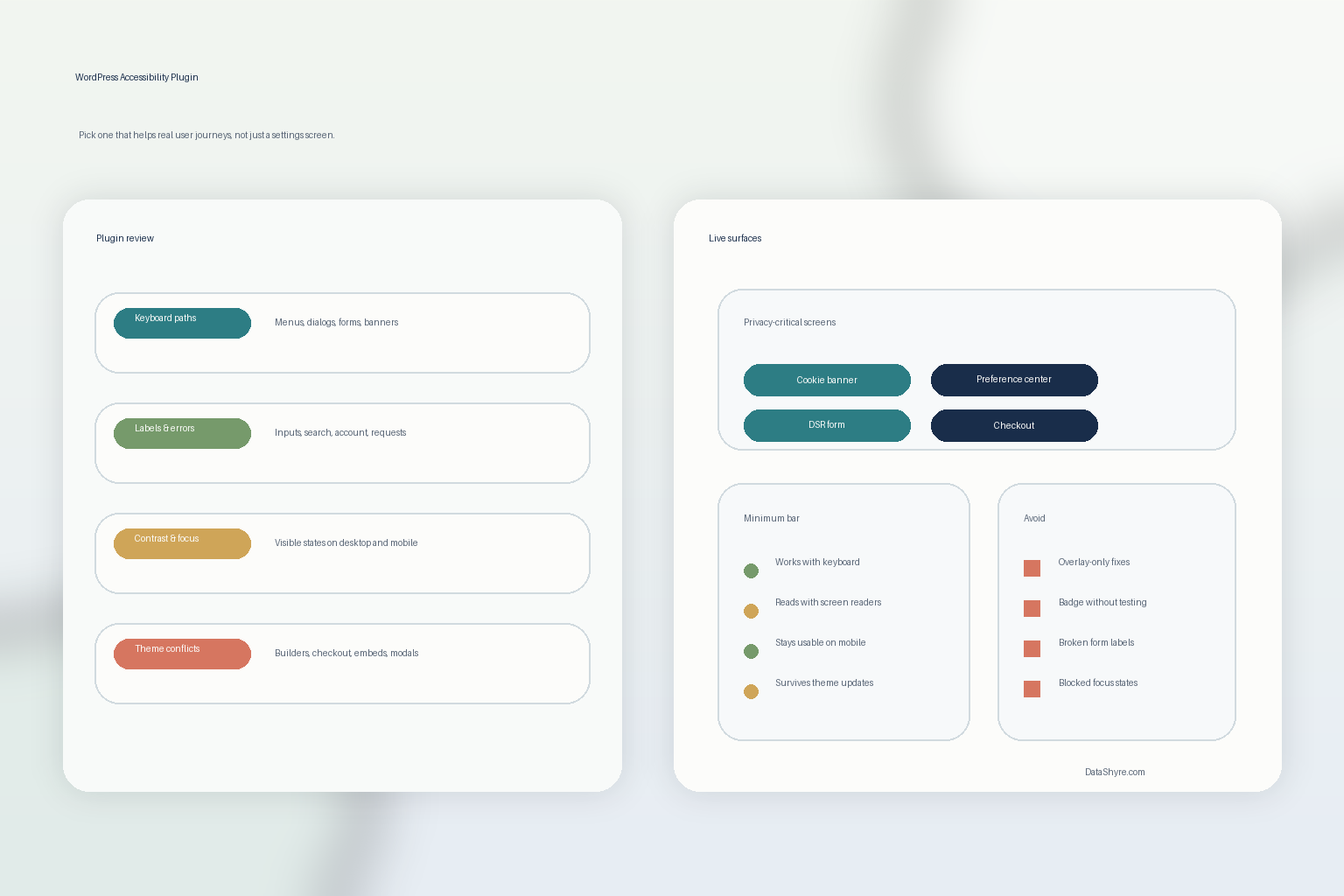
1. Start with the user journeys, not the plugin settings page
The first WordPress accessibility plugin mistake is shopping by feature list before you decide what the plugin actually needs to protect.
On a live WordPress site, the risky journeys are usually not abstract. They are things like:
- opening the mobile menu;
- using site search;
- submitting a lead or support form;
- managing cookie or privacy preferences;
- logging in or resetting a password;
- starting checkout or booking; and
- reading embedded media or PDF content.
If the plugin does not help those journeys stay usable with keyboard-only navigation, screen readers, zoom, and mobile interaction, its settings panel does not matter much.
That is why I would scope the real tasks first and only then evaluate whether the WordPress accessibility plugin helps, conflicts, or simply gets out of the way.
2. Check whether the plugin helps with remediation, testing, or only decoration
Many WordPress accessibility plugin tools sound more capable than they are.
Some actually help with useful front-end fixes or authoring prompts. Some are mostly scanners. Some are mostly overlays or badges. Some give convenience features that certain users may appreciate, but do not fix the structural accessibility problems underneath.
That distinction matters because WordPress’s own accessibility coding standards are about the code and interface behavior, not about a floating widget making the page look more accessible from a distance.
Before you install a WordPress accessibility plugin, ask:
- does it fix or expose actual markup and interaction problems;
- does it only report issues without helping your team prioritize them;
- does it add another interface layer that must itself be accessible; and
- can you explain what improves for a keyboard or screen-reader user after installation?
If the answer is mostly it adds a badge, keep looking.
3. Test privacy and consent surfaces like first-class accessibility components
This is where a lot of WordPress accessibility plugin reviews are still too shallow.
Your accessibility risk is not only in the homepage template. It is often in the components where users make choices, enter information, or try to change a setting:
- cookie banners;
- preference centers;
- privacy-request forms;
- account settings;
- newsletter signups; and
- embedded third-party dialogs.
Those are also some of the places where accessibility and privacy risk overlap. If a person cannot reject non-essential tracking, submit a rights request, or reach the same settings everyone else gets because the interface traps focus or hides labels, the issue is bigger than one plugin choice.
That is why any serious WordPress accessibility plugin review should include the privacy UX, not just content pages.
4. Check the plugin against your theme, builders, and critical plugins
WordPress rarely runs alone.
A WordPress accessibility plugin may behave differently once it meets:
- the active theme;
- a page builder;
- ecommerce flows;
- form plugins;
- booking or support tools;
- cookie-consent tooling; or
- embedded media and custom scripts.
This is one reason I do not trust accessibility claims made from a demo install alone. A clean sandbox page is not the same as a production stack with custom CSS, modal dialogs, dynamic forms, and third-party scripts.
So before approving a WordPress accessibility plugin, test it where your real friction lives:
- mobile menus;
- modals;
- multi-step forms;
- WooCommerce or payment paths where relevant;
- preference centers; and
- any theme components that already use heavy JavaScript.
If the plugin breaks focus order, duplicates labels, adds noisy landmarks, or collides with consent tooling, it is creating work rather than reducing it.
5. Include editor and content-authoring behavior, not just front-end fixes
Some WordPress accessibility plugin decisions fail because the plugin is judged only on what a visitor sees.
But WordPress is also an authoring environment.
If editors can still publish pages with weak heading structure, missing alt text, vague link labels, inaccessible tables, or confusing error copy, your accessibility problems will keep coming back even after the plugin is installed.
WordPress’s accessibility standards explicitly encourage choices that help people create more accessible content, such as alternative text, captions, and semantic structure. That is a useful filter for plugin reviews too.
A stronger WordPress accessibility plugin evaluation asks whether the tool helps the content team:
- keep headings in order;
- catch missing text alternatives;
- avoid weak button or link labels;
- preserve usable form instructions; and
- maintain structure when builders or reusable blocks are edited.
If the tool only decorates the front end while authors keep shipping inaccessible patterns, the improvement will not last long.
6. Test mobile, zoom, keyboard, and screen-reader behavior on the real site
A WordPress accessibility plugin that seems fine at desktop width can still fail quickly in the real world.
That is especially true when the site uses:
- sticky headers;
- off-canvas menus;
- cookie banners layered over forms;
- inline validation messages;
- carousels or accordions; and
- embedded chat or scheduling tools.
WCAG is not a plugin checklist. It is a behavior standard. So the practical test is whether a person can complete the task under realistic conditions:
- keyboard only;
- 200% zoom;
- mobile portrait and landscape;
- visible focus expectations;
- screen-reader announcements for labels, errors, and dialog changes; and
- repeated retesting after the plugin interacts with caching, optimization, or theme updates.
If the WordPress accessibility plugin only looks good in a one-page scan report, that is not enough evidence.
7. Turn the plugin decision into release governance, not one-time installation
The best WordPress accessibility plugin in 2026 is still only one layer in the release process.
W3C’s standards history makes the broader point clear: accessibility expectations continue to evolve. DOJ’s current rule history makes the same point from the legal side. The durable answer is not one install followed by silence. It is ongoing review.
So after choosing a WordPress accessibility plugin, tie it to:
- release reviews for theme or builder changes;
- regression checks on forms and privacy controls;
- owner accountability for critical journeys;
- testing evidence you can revisit later; and
- a rule that no badge or scanner result counts as the final word.
That is the difference between a plugin purchase and an accessibility operating model.
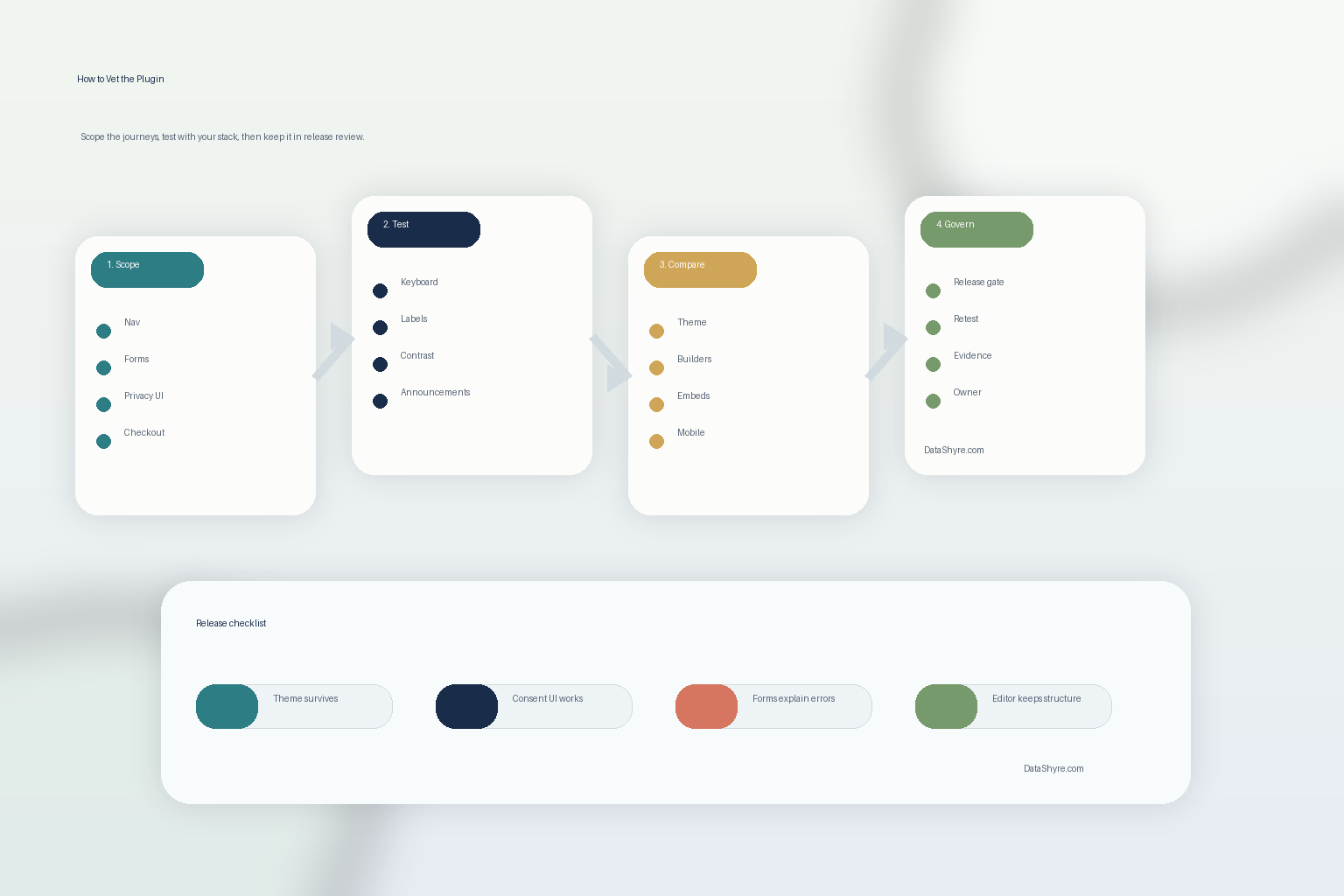
A practical 7-step review for this week
If I were shortlisting a WordPress accessibility plugin this week, I would use this order:
- list the critical journeys the site must support;
- decide whether you need remediation help, scanning help, authoring help, or some mix;
- test consent, privacy, account, and form interfaces first;
- compare the plugin against the actual theme and plugin stack;
- check whether content editors get better structure and warnings;
- re-test on mobile, keyboard-only, and screen-reader paths; and
- tie the decision to release governance instead of calling the job done.
That sequence usually tells you more than a plugin marketplace rating ever will.
FAQ
Can a WordPress accessibility plugin make my whole site compliant by itself?
No. A WordPress accessibility plugin can help, but it does not replace accessible theme code, usable forms, accessible third-party components, content governance, and real testing.
Do I still need to test cookie banners and privacy forms?
Yes. Those are often some of the most interaction-heavy interfaces on the site. If they trap focus, hide labels, or fail on mobile, the site can have both accessibility and compliance problems at the same time.
Should I trust overlay-style accessibility claims on their own?
No. Some users may like certain assistive controls, but an overlay or badge does not automatically fix weak markup, broken forms, or inaccessible dialog behavior elsewhere in the stack.
Bottom line
The right WordPress accessibility plugin in 2026 is not the one with the loudest marketplace pitch.
It is the one that helps real people complete real tasks on your real stack, including privacy choices, forms, and mobile flows, without pretending a badge is the same thing as remediation.
If the plugin cannot survive that test, the problem is not that the settings are incomplete.
The problem is that the accessibility work is still being treated like decoration instead of product behavior.
Sources
- ADA.gov, Guidance on Web Accessibility and the ADA: https://www.ada.gov/resources/web-guidance/
- ADA.gov, Extension of Compliance Dates for Nondiscrimination on the Basis of Disability; Accessibility of Web Information and Services of State and Local Government Entities (Interim Final Rule): https://www.ada.gov/assets/pdfs/2026-ifr.pdf
- W3C, Web Content Accessibility Guidelines (WCAG) 2.2 publication history: https://www.w3.org/standards/history/WCAG22/
- WordPress Developer Resources, Accessibility Coding Standards: https://developer.wordpress.org/coding-standards/wordpress-coding-standards/accessibility/